Elsevault Studio
From Story to Screen.
A production workspace for independent 2D animation creators and small studios. Organize canon, characters, scenes, shots and versioned visual materials for your series or animated film in one place.
Describe a scene, and the prototype’s AI workflow gathers the relevant project context to prepare a task for the production engine. Canon, character references and scene constraints stay connected from the idea to production.
Real screens from ongoing animation development.
01 · Storyboard & shots
From scene to approved frame.
Organize visual storyboards by episode, scene and shot. Keep approved frames and material versions connected to the production context.
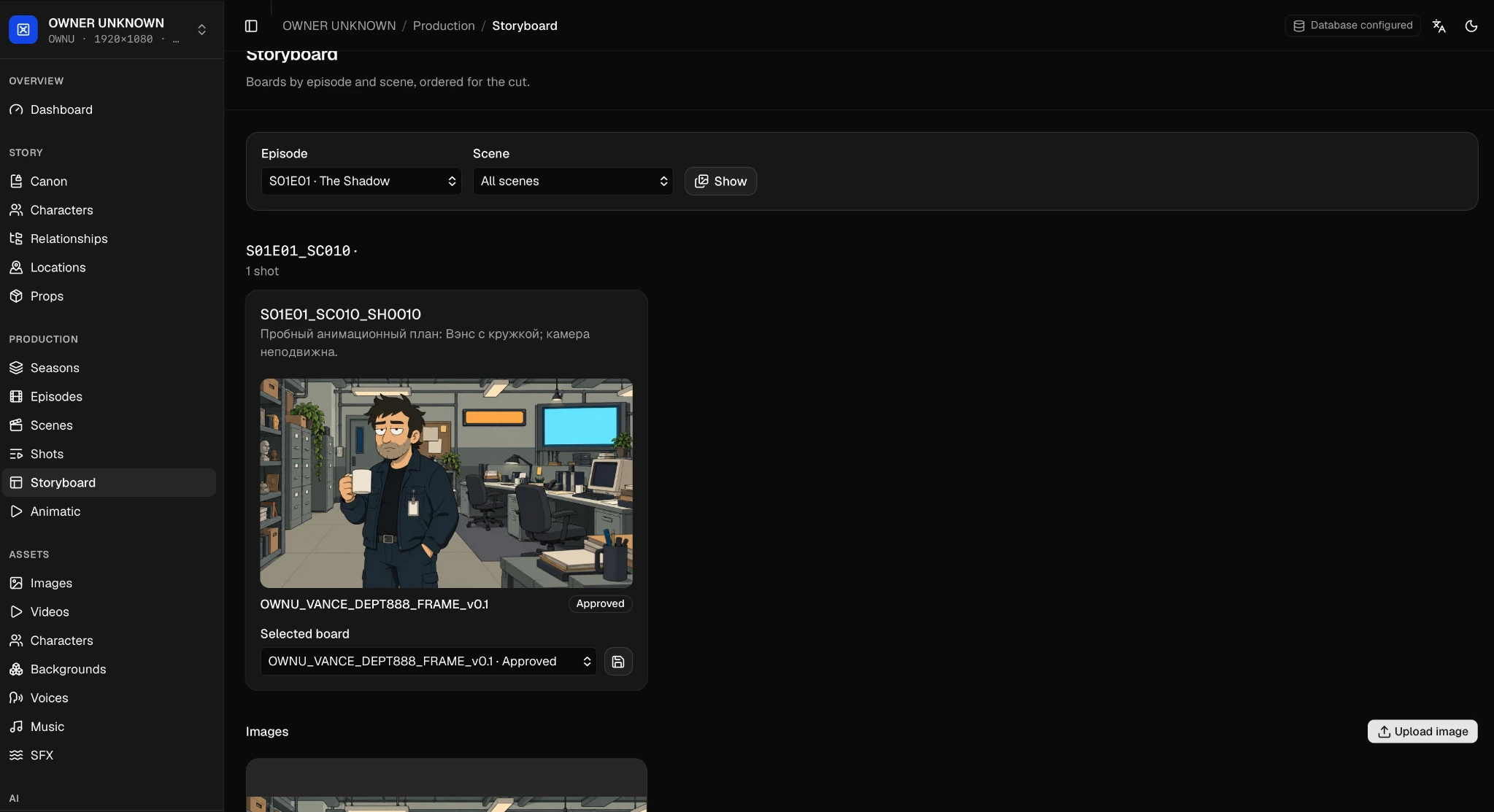
A frame with its production context.
Vance’s frame appears in a specific shot, with its material version and approval status visible together.
- Episode → scene → shotThe shot identifier keeps the frame tied to the story structure.
- Versioned frameThe asset name and selected board identify the material in use.
- Approved statusThe status identifies the approved frame.
View the complete Storyboard workspace
02 · Character development
Keep your characters consistent.
Bring character profiles, personality and role descriptions together with visual references and versioned assets. Keep the approved look close to the story it belongs to.
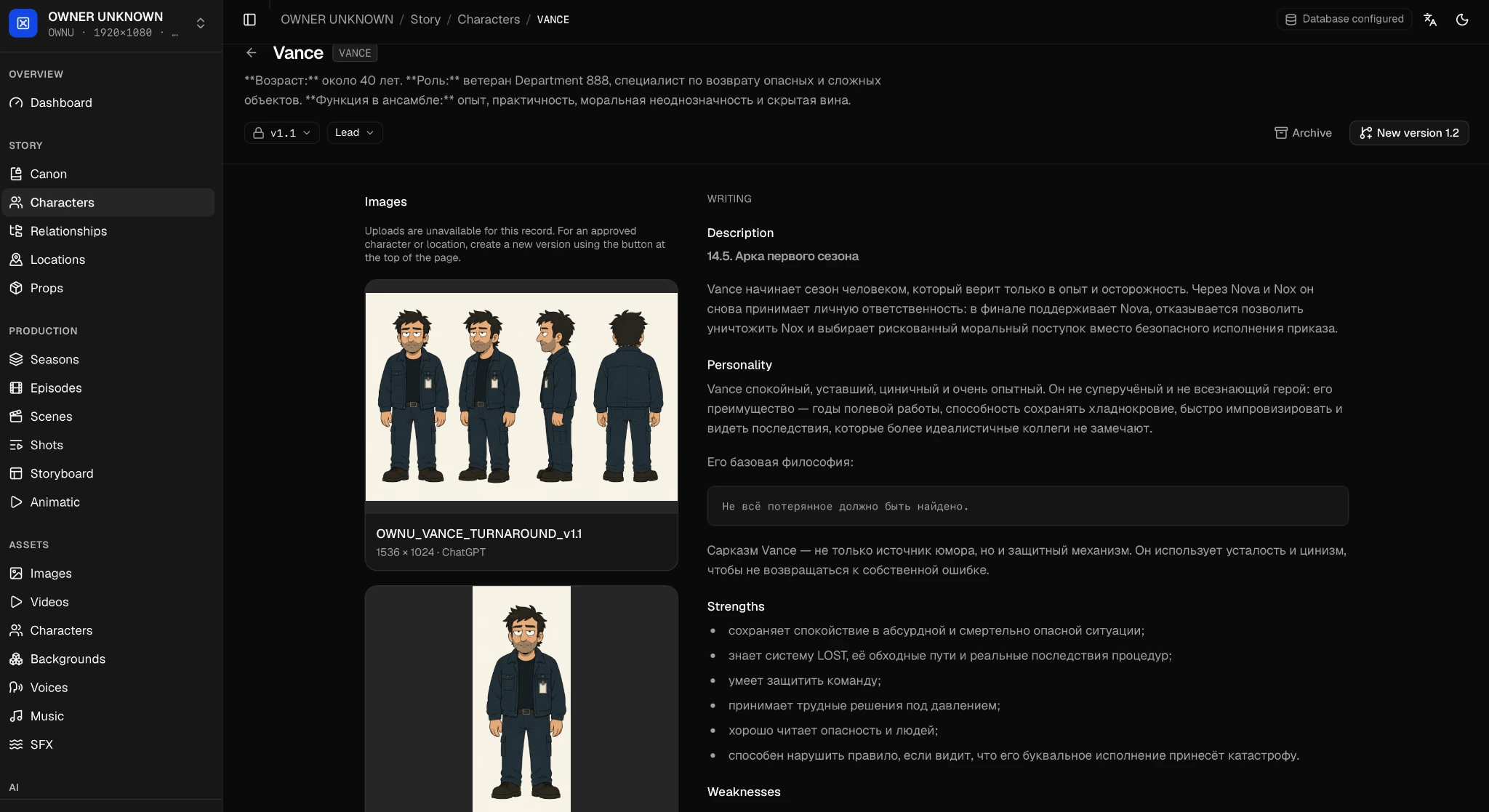
The same character, across scenes.
Keep the visual reference alongside the character’s role, personality and story description. Versioned materials give creators a clear reference as the project develops.
- Visual referenceFront, three-quarter, side and back views of Vance.
- Version contextThe reference asset is identified as v1.1.
- Character writingThe full profile includes description and personality notes.
View the complete Characters workspace
03 · Story canon
Build a world with continuity.
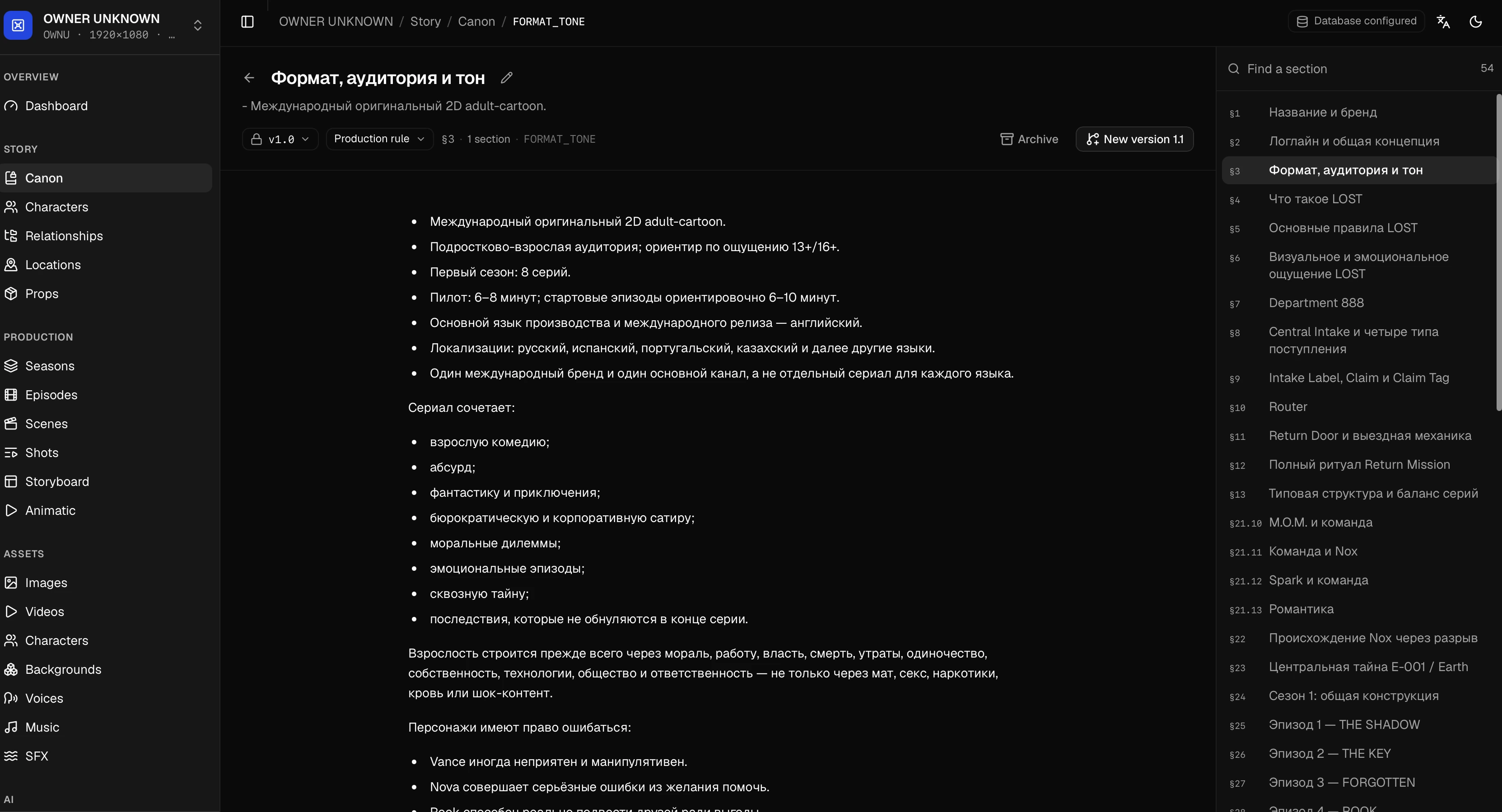
Keep story canon, world rules, visual style and production instructions in a structured project reference. Give every scene a shared foundation.
04 · Project dashboard
One place to begin production.
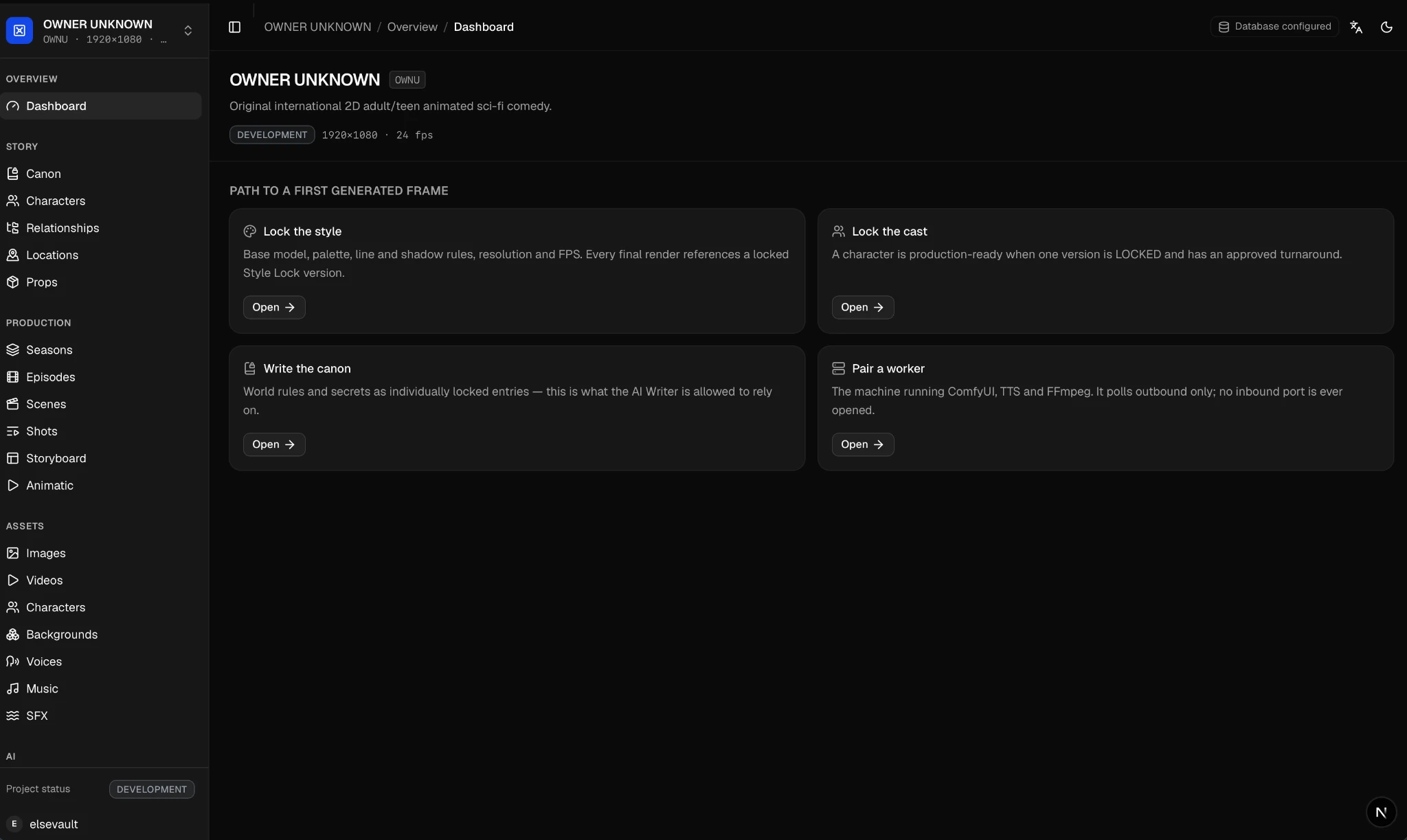
Open the project dashboard to navigate the workspace and its setup steps. Move from project context to characters, canon and visual production materials.
Working prototype · AI scene preparation
Describe a scene.
AI prepares the task.
Start with a scene request. The working AI workflow gathers relevant canon, character and location data, visual references and production constraints from the project, then prepares a structured task for the production engine.
Today we use Claude to prepare scene tasks and production prompts in our own animation work.
- 01 · Scene request
Say what happens.
For example: “Vance drinks coffee in the office.”
- 02 · Project context
AI gathers the context.
The canon, Vance’s character traits and movement notes, the office location, images and constraints provide the scene’s context.
- 03 · Production task
A task for the engine.
AI combines the request and project context into a structured task that carries the relevant references and restrictions into production.
Planned · Provider connections
Your preferred AI provider.
Planned API connections to your preferred AI provider, starting with Claude, for help with canon writing, script and scene analysis, and production prompts in Studio.
Paid Studio subscriptions are planned for a future release. Plan details and AI usage pricing are still being defined.
AI accounts and access
Connecting your own AI provider may require an account with API access and separate provider billing. Requirements will depend on the supported integration.